What a digital course certificate contains and how to verify it

You check a certificate from Beviset by scanning the QR code or typing the address below the certificate ID into a browser. The public page shows who issued the certificate and whether it is valid, expired or revoked.
Further down, every field is enlarged, with what it does for you as the issuer, for the recipient and for whoever checks it.
Every field on the certificate, enlarged
The details are cut from the certificate above and shown at the same scale.
The frame shows where the field sits on the sheet.
- Issuer

- The issuer
- Your name is at the top and is the same on all your certificates.
- The recipient
- Shows an employer where you took the course.
- Whoever checks it
- Also shown under Issued by on the verification page.
- Certificate type
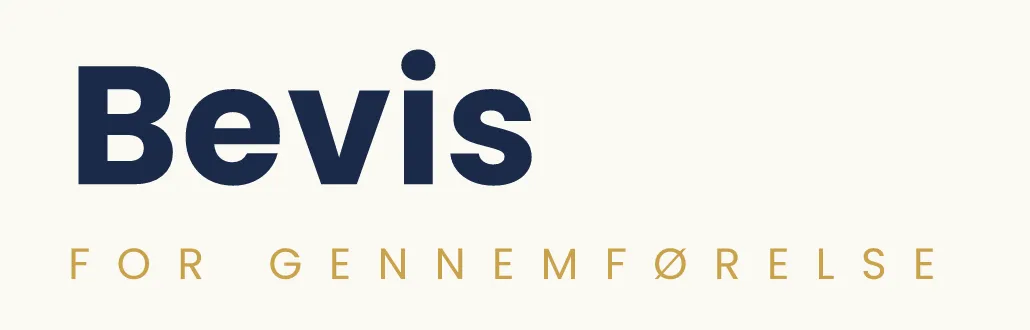
- The issuer
- Says what the certificate documents. Here it is the completion of a course.
- Whoever checks it
- Shows that a course was completed.
- Recipient
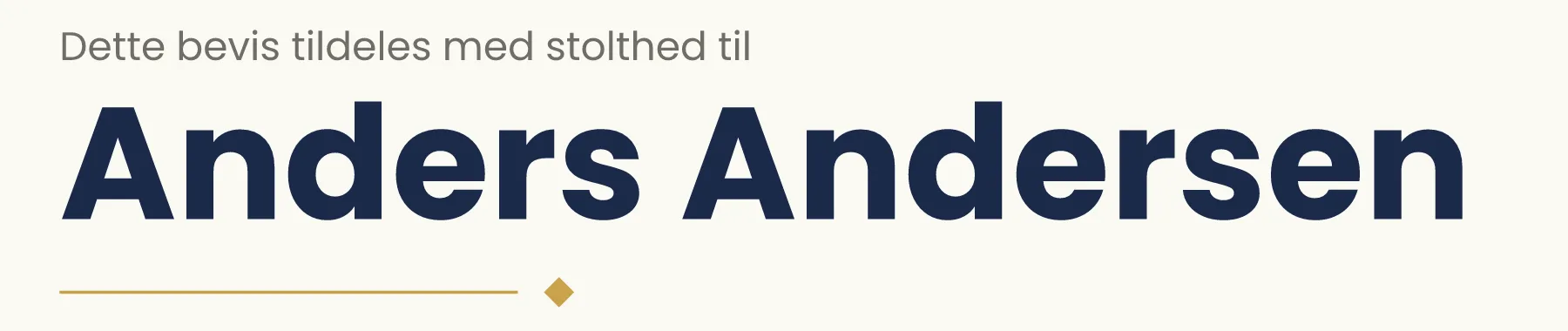
- The issuer
- Filled in when you issue, in the admin area or through the API.
- The recipient
- Your name, in the largest type on the sheet.
- Whoever checks it
- Shown under Issued to on the verification page.
- Course
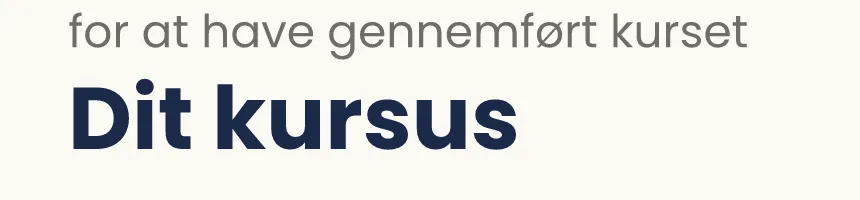
- The issuer
- The course name, as you write it when you issue.
- Whoever checks it
- Shown under Course on the verification page.
- Dates

- The issuer
- The expiry date is optional and set for each certificate.
- The recipient
- Shows when the course has to be taken again, if the certificate expires.
- Whoever checks it
- Once the date has passed, the verification page says Expired.
- Certificate ID and address
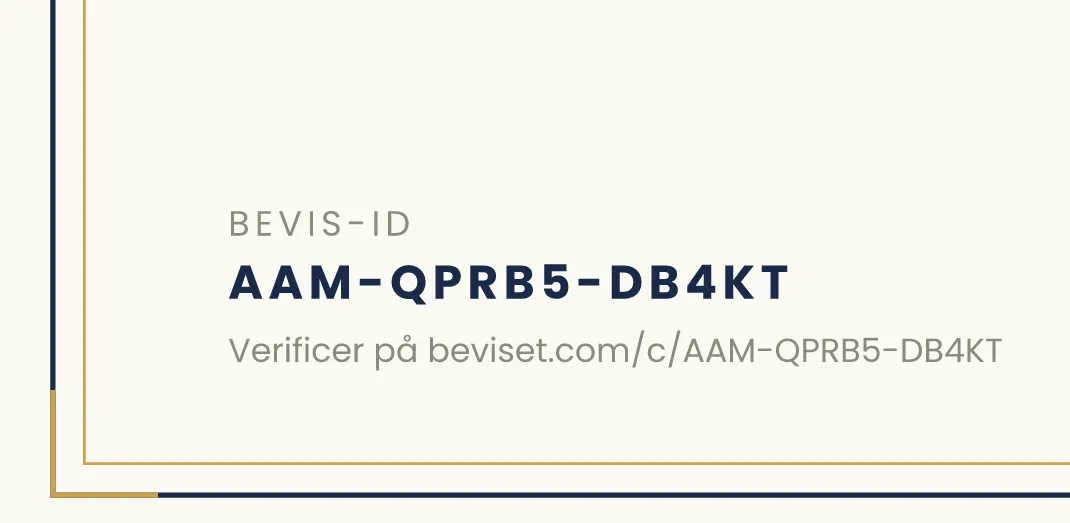
- The issuer
- The ID and the address are created automatically when you issue. Every certificate gets its own.
- The recipient
- The address is the link you share with an employer.
- Whoever checks it
- Type the address into a browser. No login is needed.
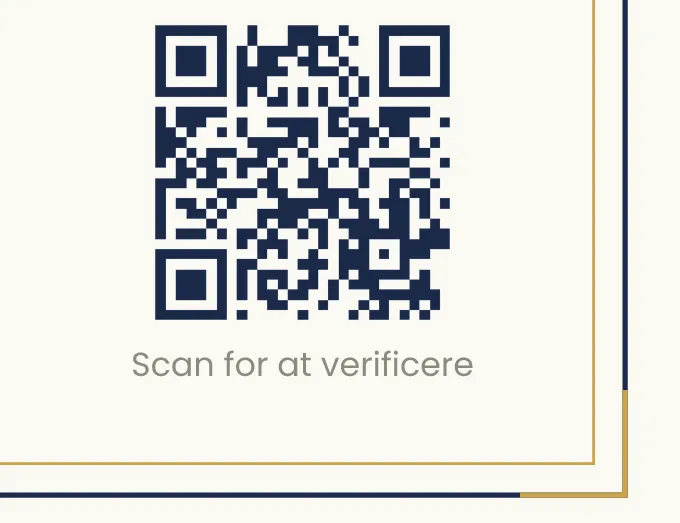
- QR code
- The issuer
- Created together with the ID and opens the same page as the address.
- The recipient
- Makes a printed certificate as easy to check as the link.
- Whoever checks it
- Scan the code with your phone camera. If you are at a computer, you can also scan the code on this screen.
Every issuer gets its own template
In the branding editor you adjust logo, colours, typography and signatures yourself and see the certificate as you work. If you would like help with the template, we set it up together with you. Whatever the design, every certificate has its own ID, address, QR code and verification page.
What the recipient gets, and how the certificate arrives
How the recipient gets the link
Every certificate gets its own page at beviset.com/c/ followed by the certificate ID. The link can reach the recipient in three ways:
- Beviset emails it.
- You send it to the recipient yourselves, for example in the email after the course.
- Your own system sends it once it has issued the certificate through the API.
How the recipient uses the certificate
On the certificate page the recipient can download or share the certificate when an employer asks or a profile needs updating:
- to save, print or attach to an application.
- PNG
- for posts, intranets and profiles where an image works best.
- Add to LinkedIn
- the certificate details are filled in on the profile automatically.
- Link to the verification
- can be sent directly to an employer or customer.
How to check a certificate
There are three ways to the same public page for that particular certificate. You do not need to log in.
- Scan the QR code on the certificate with your phone camera.
- Type the address below the certificate ID into a browser. It always starts with beviset.com/c/
- Click the link in an email or message from the recipient.
The examples on this page are not issued certificates, so their QR codes lead here. On an issued certificate the code opens the certificate's own page.

What the page shows
The status comes first. Below it are the recipient, the course, the dates, the issuer and the certificate ID, so you can compare them with the certificate.
Valid certificate
The certificate is authentic, issued by the stated issuer and still valid.
Expired certificate
The certificate is authentic, but the expiry date has passed.
Revoked certificate
The issuer has withdrawn the certificate, for example because it was issued by mistake. It is no longer valid.
What the verification confirms, and what it does not
The verification confirms that the certificate is authentic and that it was issued by the stated issuer, and it shows the certificate's status. It is not an accreditation of the course or a guarantee of the recipient's skills.
Open the verification pageWhen a certificate needs fixing, expires or gets a new design
A printed or saved certificate does not change after it has been issued. The verification page always shows the current status, so that is where a certificate should be checked. If a certificate has an error, such as a misspelled name, you can revoke it and issue a new one. Each certificate can have its own expiry date, for example when first aid has to be taken again after two years.
| When | On the issued certificate | On the verification page |
|---|---|---|
| You revoke the certificate, for example because it was issued by mistake | Unchanged | Revoked certificate |
| You reactivate it | Unchanged | Valid certificate again |
| The expiry date has passed | Unchanged. The date was there from the start. | Expired certificate The page still shows that the certificate is authentic. |
| You change the template | Certificates already issued keep their look. New certificates get the new design. | Unchanged |
If you cancel your subscription, the certificates you have issued can still be verified. See the terms on the pricing page
Can we issue to a whole class at once?
- Through the API
- Yes. Once your learning platform or HR system is connected to the API, it can issue a certificate to every participant who completes. The connection is built in your system by a developer, your vendor or us. The API is included in Standard and Platform. See what the API can do
- From a CSV file
- Yes. Upload a list of recipients in the admin area and issue certificates to all of them at once.
Issue your first 10 certificates free
The 10 free certificates are a one-off. After that, plans start at €15 per month excl. VAT. All plans have the same features except the API, which is included in Standard and Platform.
All plans and terms are on the pricing page.